Configuring UIS Commands
The UIS Commands page lists the defined UIS Commands for executing training, forecasting, and variance analysis processes for all qualified neural network definitions for the specific ELF device instance. Select the desired UIS Command to access the buttons on this page.
UIS Commands can be executed on demand by using the Execute button on this page or by using command buttons on CygNet Studio screens. Commands can be scheduled using the MSS (if the command’s Can Schedule option is enabled) or executed via a script.
Command Types
| UIS Command | Description |
|---|---|
|
Training Command |
Training commands will place training tasks for the configured list of neural network definitions onto a training priority queue. The training process will configure the neural network to produce sufficiently accurate estimates into the future based upon forecasted input data. Note: Training will fail if there is any missing data and no filling rule has been defined. See Configuring Data Filling Rules. |
|
Forecast Command |
Forecast commands will utilize the trained neural network definition to generate energy load forecast values for its associated meter or meter group. A forecasting task is completed as an entire body of work for all effective neural network definitions. Note: Forecasting will fail if there is any missing data and no filling rule has been defined. See Configuring Data Filling Rules. |
|
Variance Analysis Command |
Variance analysis commands initiate a process that adds retraining tasks to the training priority queue for neural network definitions whose forecasts are not within an acceptable range of the actual gas load. |
|
ELF UIS Commands |
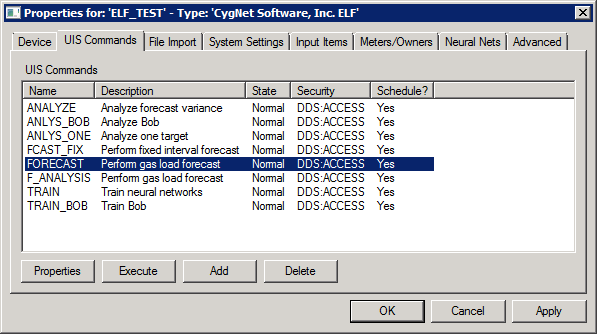
The properties for each section of this page are described below.
Buttons
| Buttons | Description |
|---|---|
|
Properties |
Highlight a UIS Command and click Properties to view and edit the properties for that command. See Configuring UIS Command Settings. |
|
Execute |
Highlight a UIS command and click Execute to perform the selected command on demand. |
|
Add |
Click Add to configure a new UIS Command. To use an existing UIS Command as a template, select the command and then click Add. See Configuring UIS Command Settings. |
|
Delete |
Click Delete to remove a selected UIS Command. |
More:
 Configuring UIS Command Settings


